
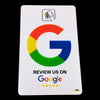
How Does a Tap Review Card Work?
, by RH Now, 6 min reading time
See how an NFC tap review card works in three simple steps: program, tap and open.
The whole idea can be explained in three steps: tap, open, review.
A business connects the NFC card to a review-page link. A customer holds a compatible phone near the card. The phone opens the link, and the customer decides whether to leave feedback.

Connect the NFC tag to the review link.
Hold the phone near the card.
The review page opens.
The NFC chip stores a web address. For a Google review card, that address normally points to the business's Google review request page. Think of the chip like a tiny bookmark.
The customer holds a compatible phone near the NFC area. The phone detects the tag and displays a link or notification.
The browser opens the programmed page. The customer can then choose whether to leave feedback and what they want to say.
Try a slightly different spot on the back of the phone.
Do not swipe the phone past the card too quickly.
A very thick or metal case can make NFC harder to detect.
If the product has a QR code, use it as the backup.
| Business | Simple placement idea |
|---|---|
| Restaurant | Near checkout or carried by a server |
| Café | Near the register |
| Retail | At the checkout counter |
| Hotel | At the front desk |
| Food truck | Near payment or pickup |
Simple script: “Thank you. If you'd like to share feedback about your visit, you can tap or scan this card.”
Then give the customer space. The goal is to make the link easy to reach, not to pressure someone into writing a review.
Google currently lets eligible Business Profiles create and share a review link or QR code. From the Business Profile, choose Read reviews, then Get more reviews, and copy the link. Google's QR-code option is currently generated from a computer browser.
A normal NFC tag that opens a web link should not require a special review-card app.
Yes. Portable cards can be useful for teams that interact directly with customers.
Yes. Using both gives customers two ways to reach the same destination.
Reviews & Reputation Series
This guide is part of RH Now's connected Reviews & Reputation series. Move through the topics in order or jump directly to the question you need answered.
SHOP REVIEW PRODUCTS
Products selected to match the topic of this guide.


